EspressoID
Badge and ID Card Software, used by:
 Small to large businesses
- Schools, school photographers, and child care facilities
- Hospitals & medical service facilities
- Police, fire departments, and churches
Small to large businesses Schools, school photographers, and child care facilities Hospitals & medical service facilities Police, fire departments, and churches Features
 Features cont. Features cont.
 Features cont.
 Features cont.
 Features cont.
 The services were great and the product was great. I am so satisfied with your new software, I will definitely come back for updates. Thank you!
I didn't have much hope first but now I must say it's the best investment so far. I am also very satisfied with their support service, five stars from me!
I am not very skilled when it comes to this stuff, but their team helped me with all the setup and configuration. I wish all companies were like this.
All EspressoID® purchases are verified before a license number will be emailed to you. Verifications are only processed during regular business hours Monday through Friday, Mountain Standard Time. After receiving your license number by email, you should run EspressoID®, click the Register button, then copy and paste your license number from the email into the registration form to complete your activation.
EspressoID® is licensed for use on one computer.
An internet connection is required for product activation and program updates.
 Click the button
 Pay safely with PayPal
 Get Liscense Email
Renew for $79.00
Renew online support and program updates for one addition year.
An internet connection is required for renewal.
EspressoID License Renewal
Your Serial Number can be found by clicking Help and then EspressoID Support Info from the main EspressoID menu.
If your serial number will not fit in the box above then you are running a very old version of EspressoID and do not qualify for renewing support. You will need to purchase a new license. You can verify this by checking if your serial number is in the form #####-#####-#####-#####-##### or check the EspressoID Support Information in the Help menu to see if you are running version 1.x.
Our renewal process is not fully automated. Once your renewal is complete you will receive an email directly from us letting you know. After receiving that notification it might take your installation of EspressoID a couple runs to pick up the new expiration date so you might get the renewal popup a couple more times. You can click Update License Expiration in the Help menu to force it to check immediately.
If your support is expired please do not download and install from any download page until EspressoID instructs you to do so since your license may not be qualified to run that version. Once your renewal is complete EspressoID will inform you that there is an update to install.
EspressoID Documentation and Sample Card Download
Download Template Card Samples
Note: The sample cards are stored in an EspressoID backup file. Restoring this backup file will replace all the cards, data and images in your EspressoID installation. It is very important if you are a current user with existing template designs and cardholders that you back this data up first. The Sample Cards Download was not intended for existing users but to help new users get started using EspressoID.
The best way to move EspressoID to a new computer is to create a backup file on the old computer before activating on the new computer. Then after you activate on the new computer you can restore the backup file from the old computer.
Please see the answer to "How do I backup my data?" below for more detailed instructions.
It requires a separate license for each computer. The backup files are portable between computers but can be protected by a password if desired. The data is not directly synchronized between the computers, you will need to use the export/import or backup/restore to move data between the computers.
Using 8-up printing you can put 8 credit card sized cards on one page. This is really
intended for perforated 8-up Teslin sheets but you can certainly print onto normal
8-1/2 by 11 paper if you want to.
You can select multiple card holders by clicking on them while holding the CTRL
key down or you can select an entire range of card holders by clicking the first
one you want then hold down the Shift key and click the last row you want to select.
Once you have them all selected you can select Print 8-Up from the Template menu.
If your current card template isn't credit card sized then you'll need to make a
new template before printing the 8-up cards. Just create a new card template and
set the card type to Credit Card Teslin. Build the card template to look like you
want. After selecting the card holders you want to print you can assign the card
template to them all at once. This will replace the current template assignment
so you might have to go back and adjust them later.
If you would like to print more than 8 on each page then there is one more option,
Cardholder List printing. Cardholder List printing will give you six columns and
six rows on one page. To make a Cardholder List print you create a new card template
and set the card type to Cardholder List 36-up, select portrait or landscape mode
and build your card as you normally would except that it's a very small card – just
1 inch by 1.4 inch. Once you have the card built you switch to tab 3 and select
the card holders you want to print then select Print Cardholder List from the Template
menu. In the printing wizard you can select a few options like how sort the prints
and what text to put at the top of each page. Then, if you have multiple Cardholder
List templates you can pick which one you want to use for the print. Finally you
get to select which fields to use to sort the data.
EspressoID automatically saves all changes to card design and card holder data. However, we recommend that you perform regular backups and store them on an independent system or drive.
We recommend that you perform regular backups and store them on an independent system or drive.
Please note, if you have a lot of card holders the backup file might be quite large. You'll need some way of transferring the file to the new computer. Most people transfer it across a network but you can certainly burn a CD with the data on it or use a USB flash drive.
From the File menu select Options then select the Password tab. There are two types of passwords, their use is described in the Options form.
When in tab 2, from the Template menu select Properties. If you select a Teslin
type card then the mag-stripe won't show up since there are no teslin sheets with
mag-stripes. At the bottom of the card properties form you will find a checkbox
to enable the mag-stripe. There is also a drop down box where you pick the printer
type. If your printer brand is not listed then we don't currently support mag-stripe
printing for that brand. If that's the case, please email us to let us know which
printer you have so can determine which printers we need to support. The Mag-Stripe
will appear on the back of the card per the ABA/IATA Specifications.
Once you have the mag-stripe visible on the card (always the back of the card so
make sure the back is visible) you can drag text fields to the back of the card.
Then right-click on the text field and you'll have the option to move it to the
different tracks on the mag-stripe. You can right click on the fields once they
are on the mag-stripe to move them between tracks or to take them off of the mag-stripe.
Note: The trial version of EspressoID does have mag-stripe support.
If the rectangle is not filled with a color you must left-click on the border of the rectangle to select it. If it is filled with a color then you can left-click anywhere on the rectangle.
To change the default printer for all programs:
If you're running Windows XP you can follow
this step by step tutorial.
If you're running Windows Vista then use
this method.
To change the printer used for a template in EspressoID:
Go to tab 2.
Select the template you want to modify using the Template drop down box
From the Template menu at the top of the program select Printer Settings
If Printer Settings isn't in the menu select Page Settings then click the Printer
button
From the form that pops up you should be able to change the printer for that template
to your desired printer. Click OK to save the change to the template.
The best way to move it isn't too hard. We tried to make it as easy as possible.
Backup EspressoID on the old computer (found in the Import/Export menu).
Copy the backup file to the new computer.
Install EspressoID on the new computer.
Activate EspressoID on the new computer.
Restore the backup from the old computer (also found in the Import/Export menu).
Verify that your data is all there.
Uninstall EspressoID from the old computer using the icon in the start menu or use
"Add or Remove Programs" in the Control Panel.
Optionally, delete data from the old computer by removing the folder found at:
In Windows XP : C:\Documents and Settings\All Users\Application Data\EspressoID
In Windows Vista: C:\ProgramData\EspressoID\Data
You shouldn't have any trouble at all.
You can import a csv file into EspressoID. EspressoID's import feature requires
the first line of the csv file to contain the field names. The names for fields
you want to import must exactly match the variable field names in EspressoID. You
don't have to import all of the fields so every field in EspressoID doesn't have
to appear in the csv. Likewise every field in the csv doesn't have to appear in
EspressoID, just the ones you actually want imported. The field names in the first
line of the csv file should not have quotes around them.
Each record you want to import should be contained on a single line. Some editors will
let you embed more than one line of data in a field but that will throw off EspressoID
because it parses the file line-by-line.
Once you have the csv file prepared you can use EspressoID's Import/Export ->
Import Card Holders feature to pull the data into EspressoID.
The csv file might look something like this:
Normally the EspressoID installer should download and install .NET Framework for you
but just in case it doesn't.
Go here:
Microsoft's .Net Framework 2.0 SP2 Download
Click the download button for NetFx20SP2_x86.exe. When another form pops up
click the Run button. When it's done downloading it will probably warn you about
installing things off the internet, let the install anyway. Proceed with the
installation and when it's done you can run EspressoID.
Make sure, after you have EspressoID running, that you go to the Help menu and run
Check for Updates. That will download the latest version of our software so you'll
have any new features we've added.
Please for more information. You will need to provide your name, business name and original serial number in the email request.
No, the new version of EspressoID includes all the features previously only available in EspressoID Mocha.
Most customer's computers are able to communicate with our server properly so there
must be something different about your computer configuration. It's difficult for
me to know why that would be since there are multiple possibilities.
The most common reason for this kind of problem is a proxy server on your network.
Many corporate or school networks have very restrictive proxy servers and sometimes
they won't let our software communicate through them. EspressoID normally picks
up the proxy settings from Internet Explorer but some proxy servers require authentication
for each request, in those cases you have to fill in your proxy user id and password
in our options form. Under the File menu you'll find Options. On the Proxy tab you
can put in the address of your proxy server, your user ID and password.
Another possibility is a content filter on your network. Corporate or school networks
often filter the sites you are allowed to visit. It is not sufficient to verify
that you can browse our web site because the activations don't happen through that
web server. We have an activation specific server located
here. Verify that you can browse to that link. If you go there and get a
web page titled "EspressoID Licensing Activation Server" then it likely
isn't a content filter blocking our site.
Talk to your IT department about whether or not a proxy server or content filter
might prevent you from accessing our server.
Many TWAIN problems are caused by incorrect TWAIN library installation. Fortunately
the most common installation problem can be corrected fairly easily.
The first thing to do is to verify that there is only one copy of the TWAIN libraries
on your computer.
In Windows XP:
Close EspressoID if it's open.
Click the Start button, click Search.
Click All Files and Folders
In the "All or part of the file name" type:
twain
Click the drop down arrow under "Look in"
Select the bottom option "Browse…"
Navigate to your Windows folder
Expand My Computer (by clicking on the + sign)
Expand C: drive
Scroll down and select Windows and click OK
Click the Search button
It might take a while to search the drive. When it's done you will be presented
with a list of files.
In the "Name" column you should look for the file TWAIN.DLL and TWAIN_32.DLL.
Next to them in the "In Folder" column it should say "C:\Windows".
It should not say "C:\Windows\System32". If any of the entries for TWAIN.DLL
or TWAIN_32.DLL have "C:\Windows\System32" listed as the folder then right-click
on the file name and select "Rename" from the popup menu. Add ".OLD"
to the file name so it will become TWAIN.DLL.OLD or TWAIN_32.DLL.OLD.
Now in the left column click "Change file name or keywords".
In the text box change twain to twunk
Click the Search button again
You should find files named TWUNK_16.EXE and TWUNK_32.EXE in the list. As with the
other files the "In Folder" column should say "C:\Windows\"
not "C:\Windows\System32". If there is a TWUNK_16.EXE or TWUNK_32.EXE
file listed in the "C:\Windows\System32" folder you should right click
on the file name and select "Rename" from the popup menu. Add ".OLD"
to the end of the file name.
Now open EspressoID and try to acquire an image from your camera.
If these files are in the wrong location on your computer it is due to your camera
driver or other software installing the file in the wrong place. EspressoID does
not install any TWAIN or TWUNK files on your computer.
The proxy settings are in the Options form. You can open the Options form by clicking
the File menu and selecting Options then select the Proxy tab.
You may need to contact your network administrator for further assistance with the
proxy settings.
The proxy settings are in the Options form. You can open the Options form by clicking
the File menu and selecting Options then select the Proxy tab.
You may need to contact your network administrator for further assistance with the
proxy settings.
EspressoID supports jpg, bmp, png, gif, tiff, wmf and emf files.
EspressoID uses a proprietary encrypted data format to protect you confidential user data against theft. If you need to transfer your data to another program EspressoID can export your data to a comma separated file supported by many programs.
From the File menu select Options then select
the Features tab. Check the Show School Specific Features check
box. Enable the school specific features under the File menu Options form. Those
features include exporting to SASI and Eagle school database formats.
In the Import/Export menu select "Export to Eagle/Aeries using ID". Select which
card holders you want to export, hit OK, select a single unique field name to use
for the file name and hit OK. It will save a text file with the limited info used
by schools as well as all the images in a subfolder named EIDData. If you don't
have a unique field to use for naming the pictures you can use "Export to Eagle/Aeries"
which will give them sequential file names like EID0001.jpg, EID0002.jpg. Both of
these methods will export a file with the image cropped like it is in EspressoID.
If that isn't what you want then you can get to EspressoID's images directly by
pulling them out of the data folder. Be careful when working in the data folder.
If you change things in the data folders you could cause problems with how EspressoID
runs and we don't provide support for problems caused by changing files in the data
folders. As long as you limit yourself to copying pictures out of that folder you should be fine. The
folder that contains the pictures depends on what OS you have and how old your EspressoID is.
In Windows 7 with a current version of EspressoID the pictures will be at:
C:\Users\Public\Documents\EspressoID\Data\Pictures
If you installed old version of EspressoID under Windows Vista or Windows 7 the pictures might be at:
C:\ProgramData\EspressoID\Data\Pictures
In Windows XP the pictures will be at:
C:\Documents and Settings\All Users\Application Data\EspressoID\Data\Pictures
The pictures in the Pictures folder are the original uncropped pictures.
You can find quick start under the Start Menu in the EspressoID folder. It will
provide a quick overview of what each tab is for. Also, try moving your mouse around
the screen and notice that the goldenrod colored area at the bottom of the screen
will change. Down there is where you find some help text for whatever you hover
the mouse over. Most common questions should be answered just by reading those help
messages.
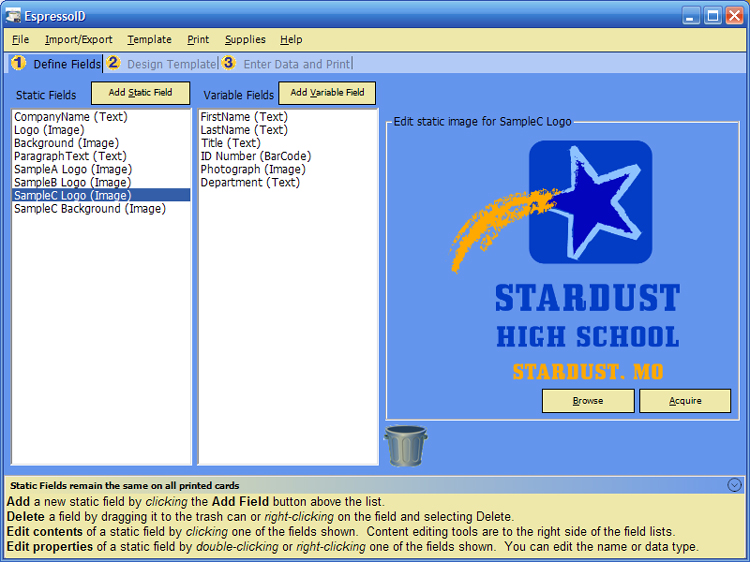
The first tab is for setting up the general fields you want on your cards. The Static
Fields list contains the list of fields that will remain the same between cards.
The most common of these is Company/School Name and Background image. Since the
company or school name is likely to show up on every card you print this is where
you create the field. Once you've added the fields you want you can click on them
in that list and you will be given the opportunity to tell EspressoID what data
they should contain (over on the right side of the screen). Click on Company Name
and on the right half of EspressoID will turn into a text box where you can type
your company name.
The Variable Fields list contains the names for data that will be different for
each card. This list should contain things like First Name, Last Name or Student
ID. Some people make the mistake of putting the data in that list rather than putting
in the name of the field. For instance, they'll put "Bob Smith" in the
list but all that does is create a field named Bob Smith, it doesn't create a card
for a person named Bob Smith. The data for Variable Fields will be filled in on
the third tab labeled Enter Data and Print.
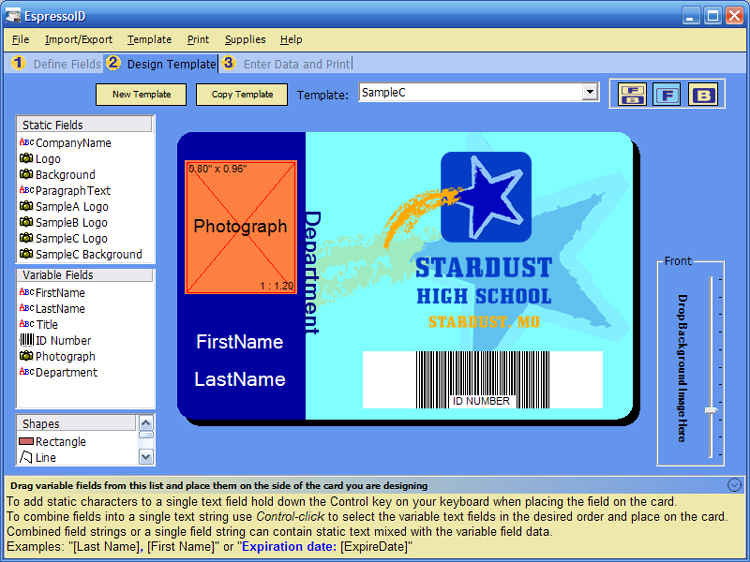
The second tab is where you build your card. On that tab you click and drag fields
from the lists on the left onto a card background. This tab is where you can select
to make the card portrait or landscape oriented. You can select that option when
you initially create the card or from the Template menu you can select Properties
and change it there. There are other interesting properties you might want to look
at there too. Position the fields as needed for your design then switch to tab 3
where you will create records for each of your card holders.
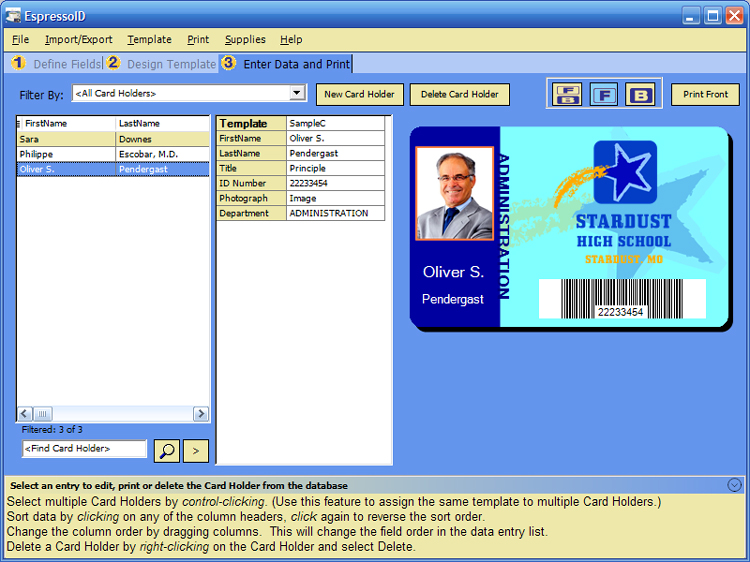
It's on tab 3 where you fill in the data for the Variable Fields. Here is where
you would fill in the First Name field with "Bob" and the Last Name field
with "Smith". There are buttons on that tab for creating a new card holder
or deleting one you no longer need. The first thing you should do when you create
a new card holder is select the card template that applies to that person. When
a school uses our software they often have quite a few templates, one for each grade
level and one or more for the staff. After selecting the template you should see
the data appear on the card as you fill out each of the variable fields. You can
use the buttons in the upper right to show just the front of the card (F), just
the back of the card (B) or both (FB). The side that is showing is the side that
will be printed when you click the print button.
Notice that there is also a search feature at the lower left of the third tab. This
is typically the quickest way to find a card holder. It searches all text fields
for the data you enter in the search box. Next to the find button is a button you
can use to expand the data sheet to the full width if you want to be able to see
all the fields at once. Use the Filter By drop down at the upper left to show only
the card holders that have a particular template assigned or have other characteristics
like card holders without photos or cards that haven't been printed.
This issue is typically related to the overbleed setting on templates. If overbleed
is turned on the background image will print slightly larger than the card dimensions
in order to avoid leaving a white border around the card since printer alignment
is never exact. It sounds like one of your cards has overbleed turned on.
Switch to tab 2 and select the troublesome card in the dropdown. From the Templates
menu select Properties. On the left side you will find "Overbleed on Print".
I'm guessing it will be checked for that template but unchecked for the other templates.
While you're looking in the template properties you can take the time to verify
that all 4 card templates are using the exact same card type. Since we support different
card sizes I want to make sure you didn't mistakenly select an incorrect card type
for that one card which would cause it to print a different size.
No, when EspressoID expires it doesn't affect program functionality. Purchasing an annual license renewal gives you another year of updates and tech support. EspressoID is continually being improved and many features have been added. Our license renewal is a great deal.
EspressoID doesn't directly support OpenType fonts, however, there are programs available
that can convert them into TrueType (.ttf) fonts that will work in EspressoID. We have
had a user report that Type works. There is
a pay version as well as a free version and the customer reported that the free version
worked for him. In Dave's words:
"You will have to open the font with the app, click the global menu and select 'Convert to TT curves' and click the Font menu, select font options and uncheck OpenType. Save As TTF and you are good to go."